
Fixes
Chat links, /navi arrows, chat and Basic Info fixes
Chat links to our Discord and website are clickable, /navi takes "map x/y" and draws the guide arrows, /nc works like official, plus chat window and Basic Info fixes.
Fixes
- Links to our Discord and website in the game chat are now clickable.
A link to our Discord or website in the game chat is clickable now. You open it with a click instead of copying it.

The chat window: the Discord and wiki links are underlined and clickable - /navi now also takes the "map x/y" and "map x,y" forms (for example /navi prt_in 44/98) and draws the official guide arrows on the ground along the route.
The /navi command now accepts map coordinates in the format 'map x/y' or 'map x,y', such as /navi prt_in 44/98. It draws official guide arrows on the ground to show the route.
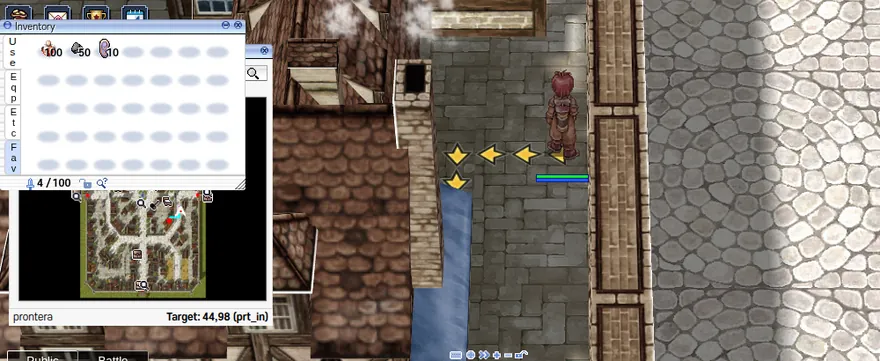
After /navi prt_in 44/98: yellow guide arrows lead along the street, and the target shows under the minimap - /nc works like in the official client: with it off, a click attacks once and Ctrl+click keeps attacking.
The /nc command now behaves like in the official client. When turned off, a single click performs one attack, and holding Ctrl while clicking enables continuous attacking.

The two chat lines /nc prints: auto attack with Ctrl, and auto attack without Ctrl - Server broadcasts at the top of the screen are easier to read (darker background, text with a dark shadow).
Server broadcasts at the top of the screen have a darker background and text with a dark shadow, so they are easier to read.
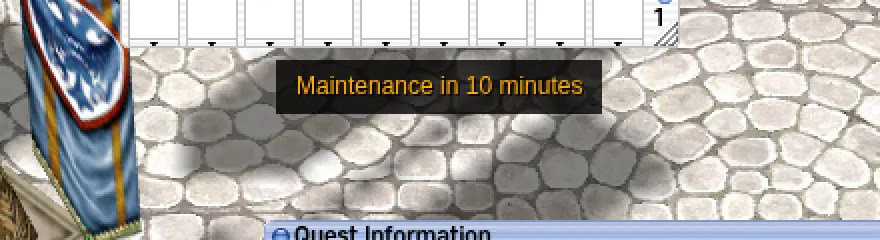
A server broadcast at the top of the screen: light text on a dark box - When Tab brings you back to your message in the chat bar, the text is selected, so you can copy or overwrite it.
When pressing Tab returns you to your message in the chat bar, the text is now automatically selected. This allows you to copy or overwrite it immediately.

The chat bar after Tab: the text of your message is selected, ready to copy or overwrite - The chat window's lock button shows a closed padlock when the window is locked and an open one when it is not.
The lock button of the chat window shows a closed padlock when the window is locked and an open one when it is not. Click it to lock or unlock the window.
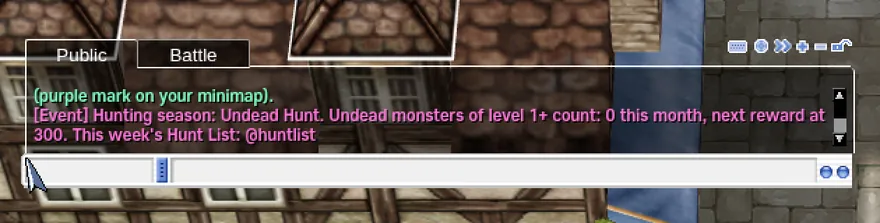
The chat window: the lock button sits among the window buttons at the top right - The small Basic Info window no longer cuts off the HP, SP and AP numbers of high-level characters.
The small Basic Info window no longer cuts off the HP, SP, and AP numbers for high-level characters. All values are now fully visible.
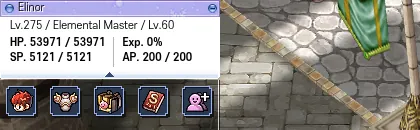
The small Basic Info window of a level 275 character: HP 53971 / 53971, SP 5121 / 5121 and AP 200 / 200 all fit - A new chat tab made after logging in again in the same browser tab now gets its own messages (it could show none, and its name could overlap another tab).
After logging in again in the same browser tab, a newly created chat tab now displays its own messages correctly. Previously, it could show no messages or have its name overlap with another tab.

The chat window with two new tabs: each name has its own space and does not overlap the next one